Hands-Free, Eyes-Free, Traffic Information
Android FAQ’s
iPhone FAQ’s

SafeTripNJ: Your Hands-Free Audio Guide to NJ Traffic Alerts
Get automatic, hands-free traffic alerts near you and along your route by simply launching SafeTripNJ before you drive – no registration or sign-up needed. Using your phone’s GPS, it detects your location and direction and announces real-time advisories about upcoming road conditions and weather on the New Jersey Turnpike, Garden State Parkway, New Jersey interstates, and New Jersey highways.
How it Works
Launch the hands-free SafeTripNJ app before you put your car in drive. Once it’s running, you can keep your hands on the wheel and eyes on the road, just listen for important alerts. SafeTripNJ stays active while you drive, automatically providing audio alerts for traffic incidents within the set mile range of your location.
Alerts are broadcast once to avoid repetition. You’ll only hear more if:
- An existing advisory near you is updated.
- You come within range of a new advisory
- Your selected replay interval triggers a re-broadcast of all current alerts.
Also, if you receive a call while an alert is playing, the alert will automatically pause and resume after the call ends.
User Features & Experience
Personalize your experience by adjusting these options, which are stored on your device:
- Advisory type
- Advisory location
- Advisory replay frequency
- All Points advisory replay frequency
- Alert range (in miles) for hearing advisories
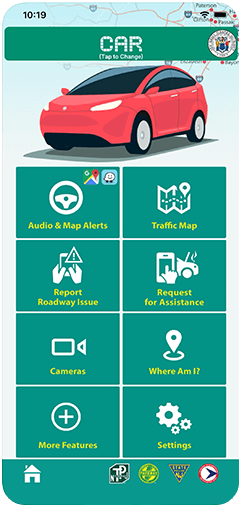
Change your vehicle type preference by tapping the “CAR” or “TRUCK” header at the top of the main screen.
Users set to “TRUCK” will have large/heavy truck information broadcast by default.




Scan this QR code to download our app from the App Store!
Easily manage audio playback with in-app controls for Play, Pause, Stop, Skip, and Replay Current. For privacy or battery saving, you can disable your phone’s GPS. In this case, the app will try to estimate relevant advisories. You also have the option to turn off GPS within the SafeTripNJ app itself, then advisories will stop playing.
Other features available include:
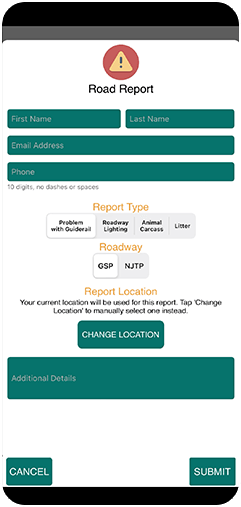
- Reporting a Roadway issue (Garden State Parkway or New Jersey Turnpike)
- Requesting Assistance – (disabled vehicle/debris) the app initiates a call to the appropriate agency
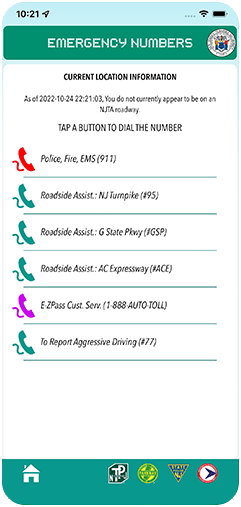
- Where Am I? – the app provides a listing of important quick-dial phone numbers. Additionally, if you are on a NJTA roadway, your location will be displayed at the top of this page.
- NJTP/GSP Toll Calculator
- NJTA and GSP Traffic Cameras
- Service Areas information
- Fuel Price information
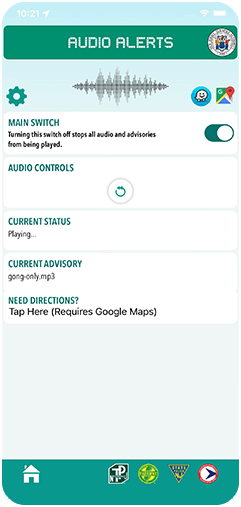
- Waze and Google app cross-launch from Audio & Map Alerts page (CAR only)
- “Need Directions” feature – quickly launch Google maps and input your destination for directions from Audio & Map Alerts page (CAR ONLY)
- Social Media links to Facebook & Twitter (X) pages
You do not need to register with the New Jersey Turnpike or NJ511, or subscribe for alerts to use this app. We don’t get or record any uniquely or personally identifying information about you or your phone.
The Technology
Built on Information Logistics’ award-winning GeoTalker technology and leveraging your device’s GPS with NJ511 data, SafeTripNJ offers a free, safe, and reliable way to stay informed, hands-free. Discover why it’s New Jersey’s preferred smart app for real-time traffic. Download it today!
Android FAQ’s
The application will not install?
SafeTripNJ is optimized for Android operating systems version 8.0 and above, including all subsequent sub-versions. If you encounter installation problems, please try uninstalling any previously installed versions of SafeTripNJ. If the issue persists, a phone reboot before attempting the new installation might help.
I’ve started the app, but I am not hearing any advisories, what’s going on?
Several things could explain why you are not hearing advisories:
- Make sure you’ve selected the “Audio & Map Alerts” button on the home screen.
- You may be in an area where no advisories are in the selected mile radius. If you think there should be, try pressing the “replay all” button on the far right of the audio controls. This will reset your connection and replay active advisories near you.
- Your advisory radius (Settings) may be set to a low value.
- You may not be in range of a cell tower to provide data access. Ask a passenger to look at the phone (or when you are stopped) to check for any possible error messages related to the cellular network. Once you are back in range of your network, advisories should resume.
- Your phone may be attempting to acquire a location for your device. If you have wireless location (settings -> location -> use wireless networks) enabled, you can generally get better response times as the phone can utilize this less accurate location while it acquires a more solid GPS lock. If you only have GPS location enabled, allow the device sufficient time to acquire a lock.. If you only have GPS location enabled, allow the device sufficient time to acquire a lock.
If the app is still not working as expected, then perhaps there was a problem with the download or installation of the app. When not driving, uninstall the app and re-download and install it in a place where you have access to the internet.
I am sitting in traffic/an incident and SafeTripNJ did not tell me about it. Why?
You might reach the incident location before our system has fully updated. If you don’t hear an advisory soon, it could be due to a few reasons.
First, check your internet connection. The app needs internet to provide advisories, and connectivity can sometimes be lost in areas with weak cellular signals. The app will automatically attempt to reconnect.
If the issue persists, it’s possible there was a problem during the app’s download or installation. When you are not driving, please try uninstalling SafeTripNJ and then reinstalling it while connected to a stable internet connection.”
SafeTripNJ continues to tell me “There are no active advisories”. Shouldn’t it be silent?
If the app keeps saying “No current advisories” it might be having trouble connecting to the internet. Weak cellular coverage can sometimes cause this. This app needs internet to work, and it will automatically try to reconnect.
When SafeTripNJ reconnects and there are still no advisories, you’ll see the “No advisories” message again.
The next time you experience issues, please toggle the “USB debugging” and “Wireless debugging” options on. This can be done by going into your phone’s Settings and then selecting “Developer options”.
SafeTripNJ is giving me advisories that are in an incorrect location. Doesn’t it know where I am?
If the app announces advisories that are not in the expected location, there are a couple of things to check:
- Internet Connection: Your phone might have lost internet access, which can happen in areas with weak cellular coverage. This app requires internet to work and will automatically try to reconnect.
- GPS Settings: Please ensure your phone’s GPS is turned on and that it has a clear view of the sky. This allows the app to accurately determine your location and direction, which may take a few minutes. If SafeTripNJ has a GPS error, it will be displayed in red on the main screen.
The next time you experience issues, please toggle the “USB debugging” and “Wireless debugging” options on. This can be done by going into your phone’s Settings and then selecting “Developer options”.
The screen shows that advisories are playing, why can’t I hear them?
If you see an advisory playing on the screen but there’s no sound, the first thing to check is your phone’s media volume. Most phones have volume controls on the side, but the exact location and function can differ between models. Your phone’s user manual will provide specific instructions.
How do I minimize the SafeTripNJ App to leave it running in the background while I use my phone for other functions?
You can click the “home” button and SafeTripNJ will continue to play advisories for you while you use other phone functions. If you just want to turn off the sound from playing, tap on the “Audio & Map Alerts” button and simply toggle the “Main Switch” option to “Off”. To have sounds resume playing again, toggle it back to the “On” position.
Alternately, you may utilize your phone’s back button. A dialogue window will appear with options to Minimize the app (advisories will play in the background), Quit the app (close the app completely), or cancel (return to app). Select “Minimize”.
How do I close the SafeTripNJ App?
You can exit the SafeTripNJ app from the homepage in two ways:
- By the Menu: Press your phone’s menu button (often represented by three dots or lines) and select ‘Quit’.
- With the Back Button: Press your phone’s back button. A pop-up will give you options: ‘Minimize’ (for background audio), ‘Quit App’ (to close completely), or ‘Cancel’ (to stay in the app). Choose ‘Quit App’.”
How do I change the settings?
To access app settings in SafeTripNJ, from the main page, tap the “Settings” button located at the bottom right of the screen. To return to the main screen, tap the “Home” icon at the bottom left.
Advisories were playing, but suddenly playback stopped, what’s happening?
First, double-check that your phone is still connected to your cellular network. (An internet connection is needed to receive audio.)
If you are connected, the audio might have stopped because another app started playing its own sound. If this happens, simply return to the SafeTripNJ app and tap the ‘Play’ button to resume the audio.
If pressing ‘Play’ doesn’t work, or if you want to hear all the advisories again, tap the ‘Replay’ button (on the far right of the audio controls) to restart the audio connection.
The next time you experience issues, please toggle the “USB debugging” and “Wireless debugging” options on. This can be done by going into your phone’s Settings and then selecting “Developer options.
I cannot retrieve a connection ID upon startup of the application, what’s happening?
The app is unable to access the network. This might be due to being in a location with no cellular data service, or if SafeTripNJ doesn’t have permission to use your phone’s data network. Please verify that you have cellular data coverage and check your phone’s app permissions to ensure SafeTripNJ is allowed network access.
The next time you experience issues, please toggle the “USB debugging” and “Wireless debugging” options on. This can be done by going into your phone’s Settings and then selecting “Developer options.
Can I select which type of advisories I hear?
Yes, tap on the “Settings” button on the main screen. Tap on the Advisory Preferences gear, check or un-check your selections from the dropdown box, tap on “Done” at the top of the box.
I need to call the NJ Turnpike/Garden State Parkway/Atlantic City Expressway/NJDOT – how do I reach someone?
For your safety, access this feature when you are not driving or have a passenger assist you.
A call can easily be initiated through the Emergency Numbers feature:
- Tap the “Where am I” button on the main screen.
- Tap the desired agency and the phone number to initiate a call will display in a separate window.
- If you are on an NJTA roadway, your precise location will be displayed at the top of this page.
I have a comment about SafeTripNJ. How do I contact you?
For your safety, please provide feedback when you are not driving or have a passenger assist you.
To send feedback:
- Tap “More Features” at the bottom of the main screen.
- Confirm that you are not driving.
- Select “Feedback” from the “More Features” list.
- Enter your name and your feedback in the designated fields.
- Include your email address if you would like a reply.
- Tap “Send Comments” button.
When I connect my cellphone via Bluetooth to the car, I cannot hear the alerts.
Bluetooth media support can vary greatly depending on the Bluetooth version and the devices you are using. It can range from no support at all to full media playback capabilities.
Devices with A2DP Bluetooth generally support playing media. Additionally, some vehicles have specific Bluetooth settings that enable your device to play audio through the car’s built-in stereo system. Most modern phones support this technology.
SafeTripNJ attempts to play via Bluetooth through compatible setups, but unfortunately not all Bluetooth users/devices will work well.
What’s the difference between “CAR” and “TRUCK” options?
When you initially start your app, you will be able to select the type of vehicle you’re in. If you select “TRUCK”, your default advisory types will include large truck information.
If you select “CAR”, your default advisory types will NOT include large truck information. You will also be permitted to cross-launch Waze or Google maps through the “Audio & Map Alerts” page. Additionally, in CAR mode, you can input your destination on the “Audio & Map Alerts” in the “Need Directions?” section. This will automatically launch Google maps and allow you to hear both NJTA advisories and Google directions.
You can switch between CAR and TRUCK settings by tapping on the CAR or TRUCK header at the top of the main page.
Can I use Waze or Google at the same time as the SafeTripNJ app?
SafeTripNJ allows you to launch Waze or Google right from the main screen. Simply tap on Audio & Map Alerts button. On the Autio Alerts page, there are Waze and Google map icons on the top right-hand side of the screen. Tap on the desired app, and it will launch. You can interact with Waze or Google and the SafeTripNJ app will continue to operate and broadcast alerts.
You must be in “CAR” mode to utilize Waze or Google through the SafeTripNJ cross-launch.
Is there a map mode?
SafeTripNJ has some components that you may use when not driving, including a traffic map. By tapping on the Traffic Map button on the home screen, you will view a map of all active events around you. Tap on each icon for more details.
Are there traffic cameras?
SafeTripNJ has some components that you may use when not driving, including traffic cameras. By tapping on the Cameras button on the home screen, you will then be able to select which roadway on which you would like to see cameras (GSP or NJTP). You will then be presented with a text listing of all cameras on that roadway, sorted by mile marker. Tap on a camera name to view the live stream. To close, tap outside the window, and you can then select another traffic camera.
Traffic cameras are also available in map mode by tapping on the Traffic Map button from the main screen.
iOS/iPhone FAQ’s
The application will not install?
SafeTripNJ is designed to run on iOS version 16.0 and all subsequent updates. If you experience any issues during installation, we recommend first uninstalling any previously installed versions of SafeTripNJ. If the problem continues, restarting your iPhone and then trying the installation again might resolve it.
I’ve started the app, but I am not hearing any advisories, what’s going on?
Several things could explain why you are not receiving advisories:
- Make sure you’ve selected the “Audio & Map Alerts Mode” button on the home screen.
- You may be in an area where no advisories are in the selected mile radius. If you think there should be, try pressing the “replay all” button on the far right of the audio controls. This will reset your connection and replay active advisories near you.
- Your advisory radius (Settings) may be set to a low value.
- You may not be in range of a cell tower to provide data access. Ask a passenger to look at the phone (or when you are stopped) to check for any possible error messages related to the cellular network. Once you are back in range of your network, advisories should resume.
- Your phone may be attempting to acquire a location for your device. If you have wireless location (settings -> location -> use wireless networks) enabled, you can generally get better response times as the phone can utilize this less accurate location while it acquires a more solid GPS lock. If you only have GPS location enabled, allow the device sufficient time to acquire a lock.
If the app is still not working as expected, then perhaps there was a problem with the download or installation of the app. When not driving, uninstall the app and re-download and install it in a place where you have access to the internet.
I am sitting in traffic/an incident and SafeTripNJ did not tell me about it. Why?
You might reach the incident location before our system has fully updated. If you don’t hear an advisory soon, it could be due to a few reasons.
First, check your internet connection. The app needs internet to provide advisories, and connectivity can sometimes be lost in areas with weak cellular signals. The app will automatically attempt to reconnect.
If the issue persists, it’s possible there was a problem during the app’s download or installation. When you are not driving, please try uninstalling SafeTripNJ and then reinstalling it while connected to a stable internet connection.”
SafeTripNJ continues to tell me “There are no active advisories”. Shouldn’t it be silent?
If the app keeps saying “No current advisories”, it might be having trouble connecting to the internet. Weak cellular coverage can sometimes cause this. This app needs internet to work, and it will automatically try to reconnect.
When SafeTripNJ reconnects and there are still no advisories, you’ll see the “No advisories” message again.
he next time you experience issues please toggle the “Debugging Mode” option on, through the “Settings” page, to send us back information so we can better troubleshoot the issue.
SafeTripNJ is giving me advisories in an incorrect location. Doesn’t it know where I am?
If the app announces advisories that are not in the expected location, there are a couple of things to check:
- Internet Connection: Your phone might have lost internet access, which can happen in areas with weak cellular coverage. This app requires internet to work and will automatically try to reconnect.
- GPS Settings: Please ensure your phone’s GPS is turned on and that it has a clear view of the sky. This allows the app to accurately determine your location and direction, which may take a few minutes. If SafeTripNJ has a GPS error, it will be displayed in red on the main screen.
The next time you experience issues please toggle the “Debugging Mode” option on, through the “Settings” page, to send us back information so we can better troubleshoot the issue.
The screen shows that advisories are playing, why can’t I hear them?
If you see an advisory playing on the screen but there’s no sound, the first thing to check is your phone’s media volume. Most phones have volume controls on the side, but the exact location and function can differ between models. Your phone’s user manual will provide specific instructions.
How do I minimize the SafeTripNJ App to leave it running in the background while I use my phone for other functions?
You can swipe up from the bottom edge of the screen and SafeTripNJ will continue to play advisories for you while you use other phone functions. If you just want to turn off the sound from playing, tap on the “Audio & Map Alerts” button in the app and simply toggle the “Main Switch” option to “Off”. To have sounds resume playing again, toggle it back to the “On” position.
How do I close the SafeTripNJ App?
SafeTripNJ uses your iPhone’s built-in controls to close. If you’re using a model that has a “Home” button (prior to iPhone X):
- Press the Home button once to minimize the app.
- Quickly press the Home button twice to open the app switcher.
- Find the SafeTripNJ icon (you may need to scroll).
- Press and hold the SafeTripNJ icon until all icons begin to wiggle and show a red ‘–’ in the corner.
- Tap the red ‘–’ on the SafeTripNJ icon to close the app.
For iPhone X and later models (those without a physical Home button), closing the SafeTripNJ app is easy: just swipe your finger up from the very bottom of the screen.
How do I change the settings?
With the SafeTripNJ app open, at the main screen, tap on the “Settings” button.
You may return back to the main screen by tapping the Home icon located at the bottom of the Settings page.
Advisories were playing, but suddenly playback stopped, what’s happening?
First, double-check that your phone is still connected to your cellular network. (An internet connection is needed to receive audio.)
If you are connected, the audio might have stopped because another app started playing its own sound. If this happens, simply return to the SafeTripNJ app and tap the ‘Play’ button to resume the audio.
If pressing ‘Play’ doesn’t work, or if you want to hear all the advisories again, tap the ‘Replay’ button (on the far right of the audio controls) to restart the audio connection.
The next time you experience issues please toggle the “Debugging Mode” option on, through the “Settings” page, to send us back information so we can better troubleshoot the issue.
I cannot retrieve a connection ID upon startup of the application, what’s happening?
The app is unable to access the network. This might be due to being in a location with no cellular data service, or if SafeTripNJ doesn’t have permission to use your phone’s data network. Please verify that you have cellular data coverage and check your phone’s app permissions to ensure SafeTripNJ is allowed network access.
The next time you experience issues please toggle the “Debugging Mode” option on, through the “Settings” page, to send us back information so we can better troubleshoot the issue.
I received a GPS error upon starting the application, what’s happening?
SafeTripNJ needs permission to access your GPS and location. Here’s how to check:
- Go to your iPhone’s Settings.
- Locate the “Location Services” option. Make sure the Location Services toggle at the top is ON.
- Scroll down and find SafeTripNJ. Ensure its toggle is also ON.
Note: If you can’t turn on Location Services for SafeTripNJ, it might be restricted:
- Go to your iPhone’s Settings -> General -> Restrictions (you might need to enter your passcode).
- Under “Allow Changes” tap Location.
- Select Allow Changes.
- Make sure the main Location Services toggle on the previous screen is ON.
- Then, ensure the toggle next to SafeTripNJ is also switched to ON.
If you continue to see a location error after checking these settings, you might be in an area where location data is temporarily unavailable. Try moving to a location with a better cellular reception or a clearer view of the sky.
For future troubleshooting, please enable “Debugging Mode” option through the “Settings” page, to send us back information so we can better troubleshoot the issue.
Can I select which type of advisories I hear?
Yes, tap on the “Settings” button on the main screen. Tap on the Advisory Preferences gear, check or un-check your selections from the dropdown box, tap on “Save” at the bottom of the box. The screen will return to the “Settings” screen.
I need to call the NJ Turnpike/Garden State Parkway/Atlantic City Expressway/NJDOT – how do I reach someone?
For your safety, access this feature when you are not driving or have a passenger assist you.
A call can easily be initiated through the Emergency Numbers feature:
- Tap the “Where am I” button on the main screen.
- Tap the desired agency, a “Call” box will display with the telephone number and Yes/No button to initiate the call.
- Tap on “Yes” and tap on “Call” to dial or “Cancel” to terminate the request.
- If you are on an NJTA roadway, your precise location will be displayed at the top of this page.
I have a comment about SafeTripNJ. How do I contact you?
For your safety, please provide feedback when you are not driving or have a passenger assist you.
To send feedback:
- Tap “More Features” at the bottom of the main screen.
- Confirm that you are not driving.
- Select ‘Feedback’ from the “More Features” list.
- Enter your name and your feedback in the designated fields.
- Include your email address if you would like a reply.
- Tap “Send Comments” button.
When I connect my cellphone via Bluetooth to the car, I cannot hear the alerts.
Bluetooth media support can vary greatly depending on the Bluetooth version and the devices you are using. It can range from no support at all to full media playback capabilities.
Devices with A2DP Bluetooth generally support playing media. Additionally, some vehicles have specific Bluetooth settings that enable your device to play audio through the car’s built-in stereo system. Most modern phones support this technology.
SafeTripNJ attempts to play via Bluetooth through compatible setups, but unfortunately not all Bluetooth users/devices will work well.
What’s the difference between “CAR” and “TRUCK” options?
When you initially start your app, you will be able to select the type of vehicle you’re in. If you select “TRUCK”, your default advisory types will include large truck information.
If you select “CAR”, your default advisory types will NOT include large truck information. You will also be permitted to cross-launch Waze or Google maps through the “Audio & Map Alerts” page. Additionally, in CAR mode, you can input your destination on the “Audio & Map Alerts” in the “Need Directions?” section. This will automatically launch Google maps and allow you to hear both NJTA advisories and Google directions.
You can switch between CAR and TRUCK settings by tapping on the CAR or TRUCK header at the top of the main page.
Can I use Waze or Google at the same time as the SafeTripNJ app?
SafeTripNJ allows you to launch Waze or Google right from the main screen. Simply tap on Audio & Map Alerts button. On the Autio Alerts page, there are Waze and Google map icons on the top right-hand side of the screen. Tap on the desired app, and it will launch. You can interact with Waze or Google and the SafeTripNJ app will continue to operate and broadcast alerts.
You must be in “CAR” mode to utilize Waze or Google through the SafeTripNJ cross-launch.
Is there a map mode?
SafeTripNJ has some components that you may use when not driving, including a traffic map. By tapping on the Traffic Map button on the home screen, you will view a map of all active events around you. Tap on each icon for more details.
Are there traffic cameras?
SafeTripNJ has some components that you may use when not driving, including traffic cameras. By tapping on the Cameras button on the home screen, you will then be able to select which roadway on which you would like to see cameras (GSP or NJTP). You will then be presented with a text listing of all cameras on that roadway, sorted by mile marker. Tap on a camera name to view the live stream. To close, tap outside the window, and you can then select another traffic camera.
Traffic cameras are also available in map mode by tapping on the Traffic Map button from the main screen.